
Working with OSA components
Components that are checked by the plugin are displayed in the OSA section of the CodeScoring UI.
View package list
The list of scanned packages can be viewed in the OSA -> Packages subsection. The Packages table contains all packages that were scanned while the OSA plugin was running, with the following information:
- Package – name of the package (with a link to its page);
- Technology – technology (programming language or assembly tool);
- Licenses – licenses;
- Authors – authors;
- Vulnerabilities - number of vulnerabilities found;
- Block status – component blocking status at the time of the last request;
- Released – date and time when the package version was published;
- Last requested at – date and time of the last package request.
The package table can be filtered by technology, license, blocking status, or time of last component request.
You can run bulk analysis for selected OSA packages. Select the required packages in the table, click Actions, select Run analysis, and confirm the action.
By clicking on the name of the package, you can go to its individual page, where information about the found vulnerabilities and triggered policies is displayed.
Package details page
The package details page contains the main component attributes:
- PURL – unique package identifier;
- Actual – component actuality status;
- Technology – package technology;
- Licenses – package licenses;
- Version – package version;
- Authors – package authors;
- Home page – link to the project page;
- Index URL – link to the package index page;
- Released – date and time when this version was published;
- Last requested at – date and time of the latest request;
- First requested at – date and time of the first request;
- Policies updated – date and time of the latest policy update for the component according to the update mechanism;
- Status – package revoked status;
- Repository – repository name where the package was received from;
- Repository manager – repository manager name;
- Package link – link to the package in the repository manager.
View a list of container images
Container images are displayed in the OSA -> Container images subsection after connecting the corresponding registry. Each entry in the list contains the following information:
- Name – name of the image;
- Container registry – name of the registry that contains the image;
- Dependencies – number of dependencies found;
- Vulnerabilities - number of vulnerabilities found;
- Block status – component blocking status at the time of the last request (for repositories with the OSA plugin);
- Last scanned – date and time of the last scan;
- Last requested at – date and time of the last package request.
The table with images can be filtered by registry name and blocking status.
You can run bulk analysis for selected images. Select the required images in the table, click Actions, select Run analysis, and confirm the action.
By default, the added image is not scanned. To carry out the analysis, you need to go to the image page and click on the Run SCA button. Based on the scanning results, information about the found dependencies and vulnerabilities, as well as a list of triggered security policies and image layers, will appear on the image page.
A SBOM and a PDF report are available for download, based on the data from the most recent successful image scan.
Container image details page
The container image details page contains the main component attributes:
- PURL – unique image identifier;
- Digest – image digest;
- Tags – image tags;
- Actual – component actuality status;
- Policies updated – date and time of the latest policy update for the component according to the update mechanism;
- Last requested at – date and time of the latest request;
- First requested at – date and time of the first request;
- Last scanned – date and time of the latest scan;
- Block status – component blocking status at the time of the last request;
- Container registry – registry name where the image is stored;
- Image links in registry – links to the image in connected registries;
- Base image name – name of the image this image was built from;
- Base image version – version of the image this image was built from;
- Repository – repository name where the image was received from;
- Repository manager – repository manager name.
View image layers list
Container image layers are displayed in the OSA -> Image layers subsection after images are scanned via an SCA project or from the OSA -> Container images section. The list helps you assess layer composition and size, as well as how many images use each layer.
The table can be filtered by layer ID, media type, and the image that contains the layers.
Each entry in the list contains the following information:
- ID – layer identifier (digest) and a short description of the build instruction that produced the layer; click it to view the full command;
- Media type – MIME type of the layer content;
- Vulnerabilities count - the number of vulnerabilities associated with the layer;
- Size, MB – layer size in megabytes;
- Number of images – number of images that include this layer.
As in other list sections, pagination, rows per page, table display settings, and column sorting are available.
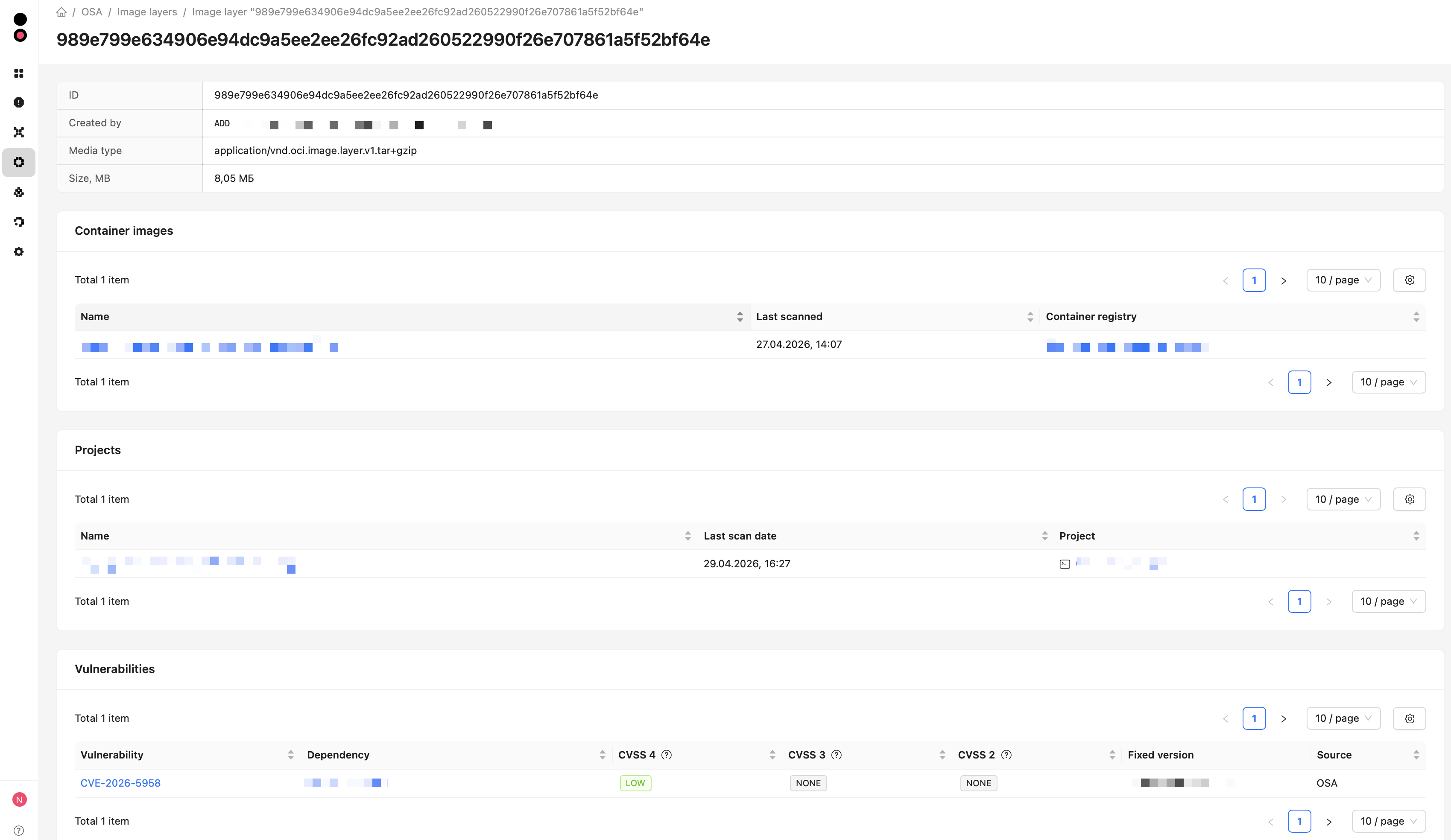
Image layer details page
The image layer details page contains the main component attributes:
- ID – layer identifier;
- Creation command – full command that produced the layer;
- Media type – MIME type of the layer content;
- Size, MB – layer size in megabytes.
The Container images and Projects sections list the images that contain the layer. For each image, they show the name, date and time of the latest scan, and the container registry or project.
The Vulnerabilities section lists the vulnerabilities found in the layer and related information. The Source field indicates where the vulnerability was detected.
View component requests
The list of component requests from proxy repositories with the plugin connected can be viewed in the OSA -> Requests subsection.
Package requests appear on the Packages tab and by default contain the following information:
- Package – name of the package (with a link to its individual page);
- Technology – technology;
- Plugin mode – plugin operating mode;
- Block status – blocking status;
- Requested at – date and time of the request;
- Request initiator - request initiator username from repository manager.
Container image requests appear on the Container images tab and by default contain the following information:
- Container image – name of the image (with a link to its individual page);
- Registry – name of the registry that contains the image;
- Plugin mode – plugin operating mode;
- Block status – blocking status;
- Requested at – date and time of the request;
- Request initiator - request initiator username from repository manager.
You can also display the CodeScoring User (CodeScoring user configured in the OSA plugin) and Requested PURL (PURL of the requested component) columns for both tables.