Scanning a container image
The agent supports image scanning functionality in the OCI and Docker standards and can be launched in one of the following ways, indicating:
- path to the tar archive created using docker save:
- image name located in the Docker daemon, Podman:
- image name from the public Docker HUB:
- image name from private registry:
Before working with a private repository, you need to run the command docker login
Alternatively, you can log in to the private registry using environment variables:
JOHNNY_REGISTRY_AUTH_AUTHORITY- URL to the registry (for example "docker.io", "localhost:5000", etc.);JOHNNY_REGISTRY_AUTH_LOGIN- login;JOHNNY_REGISTRY_AUTH_PASSWORD- password;JOHNNY_REGISTRY_AUTH_TOKEN- token;
or through similar variables in the config file:
authority;login;password;token.
Note: token and login with password are interchangeable.
Scanning the file system inside a Docker image
To scan files inside an image, you need to add the --scan-files parameter to the command or specify the scan-files variable in the image section in the config file.
When scanning a file system, you can use the --ignore option to exclude specific files from analysis. For example:
Changing the temporary directory
During scanning, the agent downloads the image to the operating system's temporary directory. If there is not enough space there, specify another directory with environment variables for the agent session:
TMPDIR– for Linux and macOS;TMPandTEMP– for Windows.
Example for Linux and macOS:
Example for Windows (PowerShell):
Command parameters
The scan image command has the following unique parameters, in addition to the general scan command settings:
--hash– specifying the image hash;--scan-files– scanning files in the image.--branch-or-tag– a reference to a branch or repository tag. Format^refs/(heads|tags)/.+(e.g.refs/tags/v1.0);--commit– specifying the commit hash;- 2026.35.0
--pkg-types– include only the specified comma-separated package types in the scan results. Supported values:os-pkgs(operating system packages) andlang-pkgs(packages of programming language ecosystems). If not set, all package types are included. Passing an unsupported value terminates the scan with an error. Example:--pkg-types=os-pkgs,lang-pkgs.
For a summary of the available command parameters and usage instructions, you can call the command with the -h, --help flag.
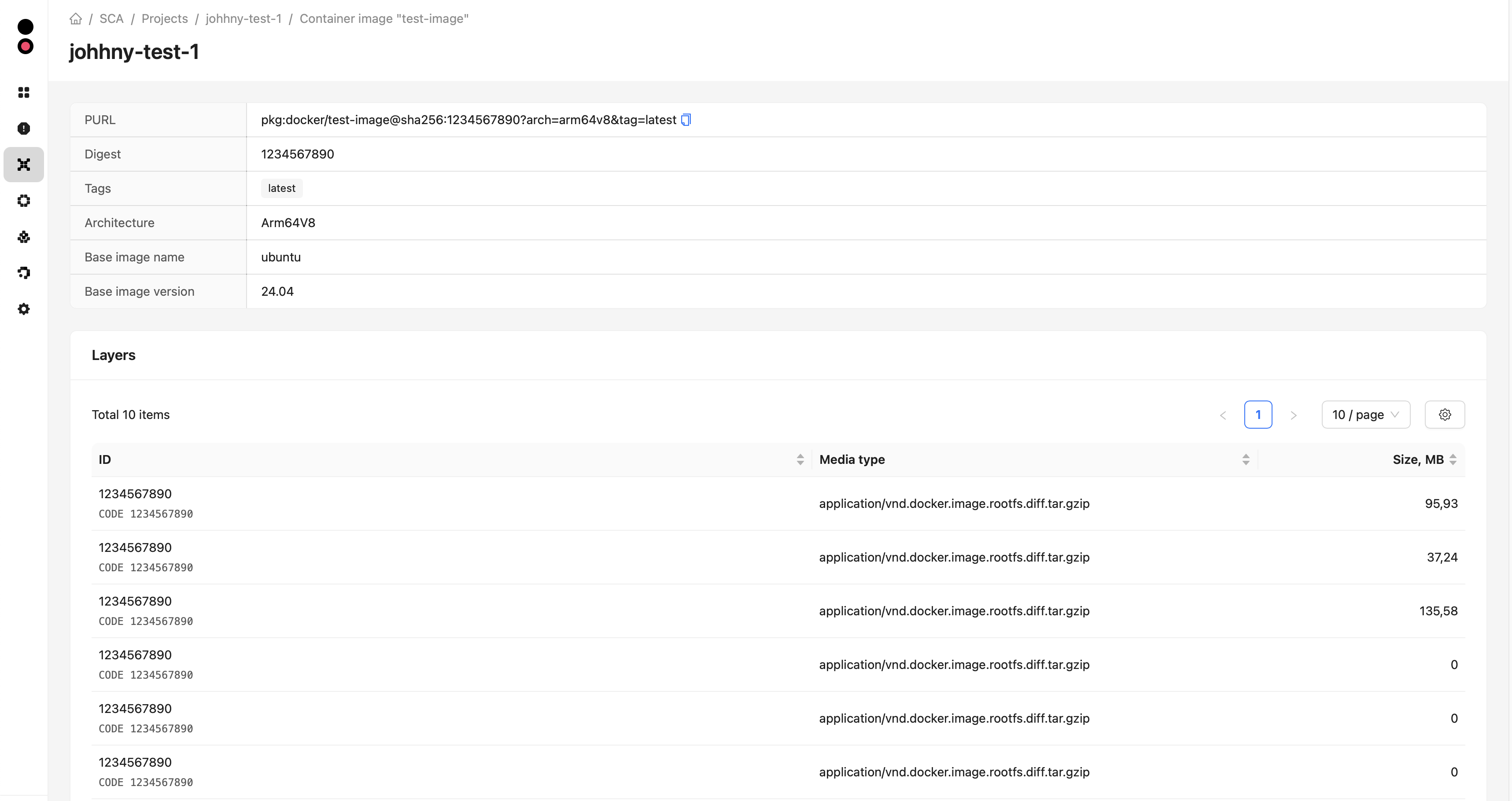
When image scan results are saved, you can view detailed information about the image and its layers in the project: