Notification settings
For each policy, you can configure additional notifications, in addition to viewing the results in the Policy Alerts section. There are currently three notification methods available: via email and via the Jira and Kaiten task managers.
Email notifications
Email notifications are sent via SMTP integration.
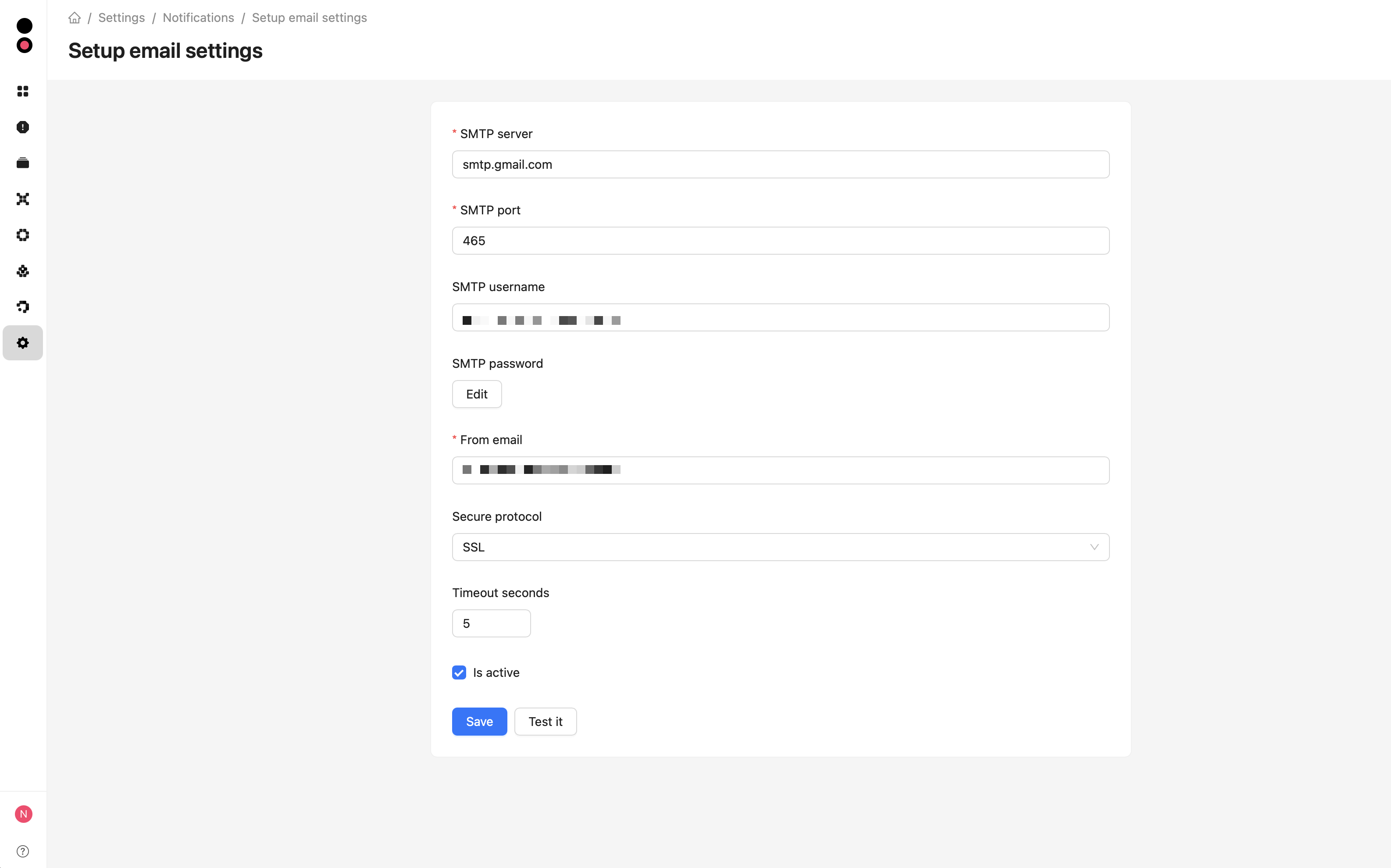
To send notifications via email, the mail server must be configured beforehand in the Settings -> Notifications -> Email section. To do this, you need to fill in all mandatory fields and check the Is active flag.
The form contains the following settings:
- SMTP server and SMTP port — mail server address and port;
- SMTP username and SMTP password — credentials, if the server requires authentication. To replace a saved password, click Edit;
- From email — sender address for outgoing messages;
- Secure protocol —
SSL,TLS, or no secure protocol; - Timeout seconds — time to wait when connecting and performing SMTP operations. Defaults to
5seconds and accepts a positive integer; - Is active — enables email delivery through the configured server.
Click Save to apply the settings. Click Test it to enter a recipient address and send a test email using the form values.
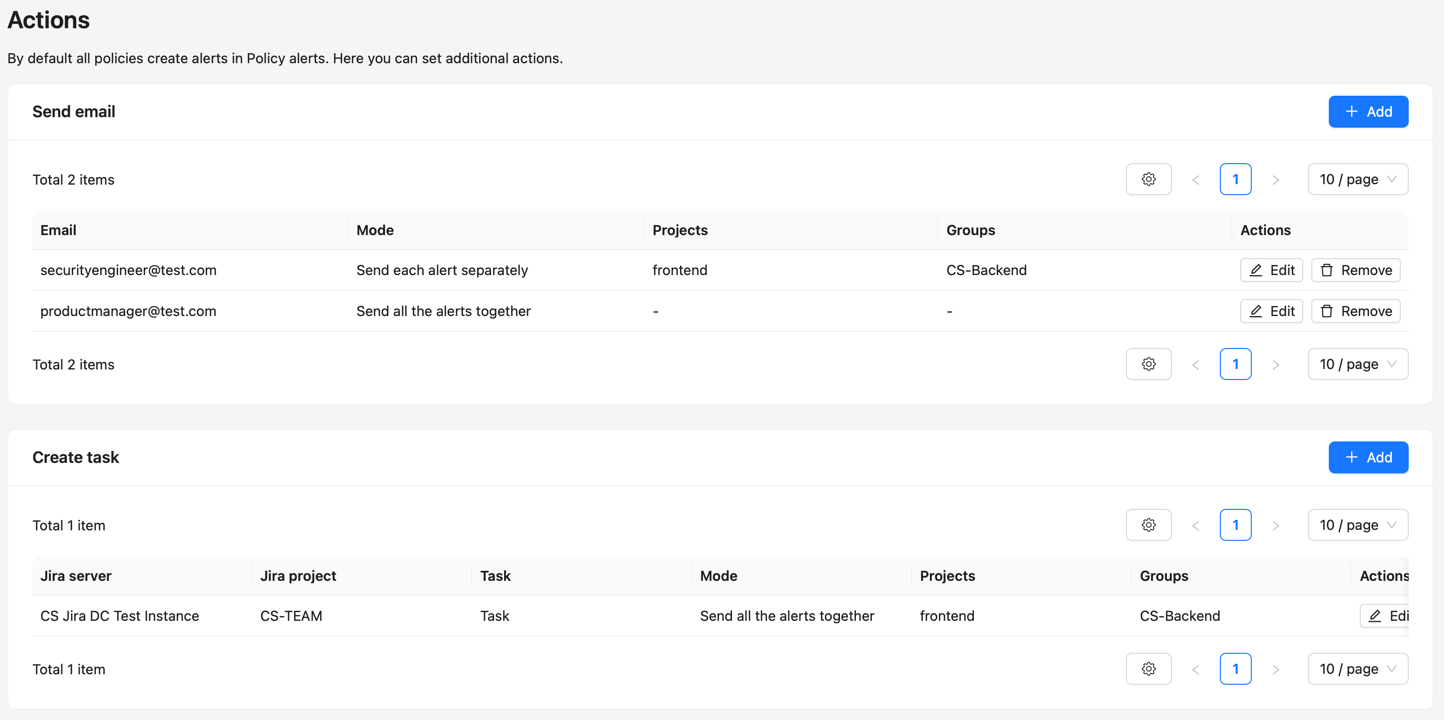
After configuring the mail server, in the Actions section of the policy page you can add an email address to which emails with policy alerts will be sent:
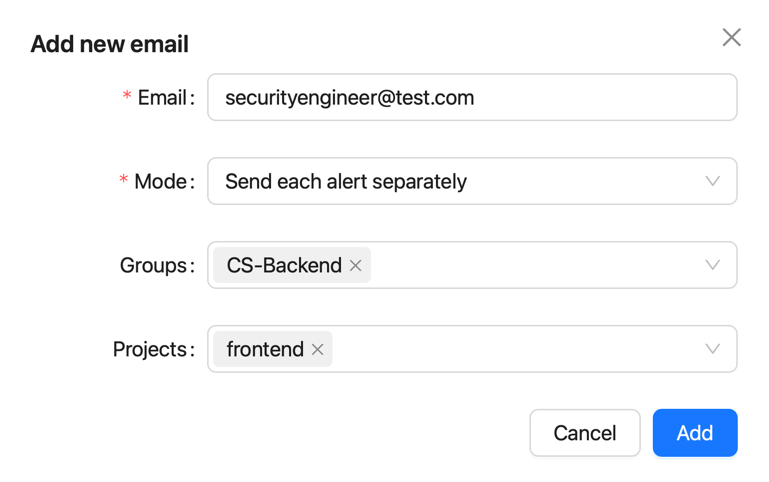
- Email — email address;
- Mode — email sending mode:
- Send all the alerts together;
- Send each alert separately;
- Template - template name. If not specified the default template would be used;
- Groups — groups of projects to which notification is made. If not specified, all groups are implied;
- Projects — the specific projects for which the notification is made. If not specified, all projects are implied.
If both groups and projects are specified, alerts will include information for all projects in the specified groups and for all specified projects.
The policy results email is sent after the project has been scanned. The content of the email depends on the selected template.
Task managers integration
CodeScoring supports integration with the Jira and Kaiten task managers to generate tasks for triggered policies. The integration is configured in the Settings -> Notifications -> Task managers section.
The Setup new button form is used to create a new integration.
- Name - name of the integration;
- Type - type of task manager;
- URL - address where the task manager can be accessed;
- Auth type - authentication type (via access token or login and password);
- Task custom static fields — additional fields for created issues, specified as a JSON object. This field is available for the Jira Server type.
Kaiten only supports authentication via access token.
After filling in the fields, you can test the connection to the server by clicking Test it, or complete the creation by clicking Setup now.
When editing an existing integration, click Save. To replace a saved password or token, click Edit in the corresponding field.
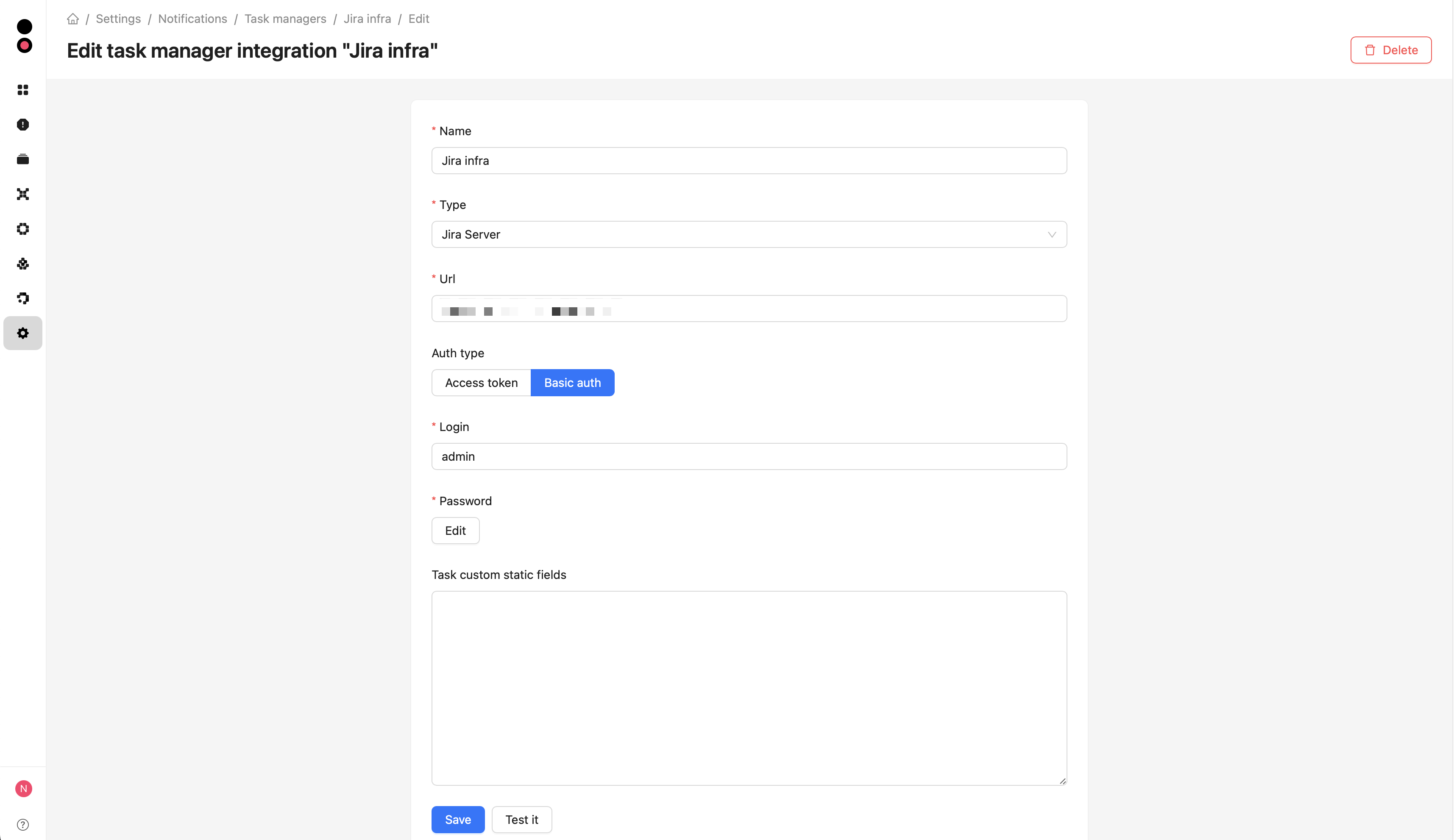
Use Task custom static fields to set the same additional values for all issues created through this integration. For example:
Use field identifiers and value types that match your Jira configuration. To create issues without additional static fields, leave the field empty or enter {}. The main issue fields — summary, description, project, and issue type — are populated from the policy action data.
Creating tasks in task managers
Once the integration is configured, under Actions on the policy page, you can add a Jira or Kaiten server on which to create a task with the policy results:
Creating tasks in Kaiten
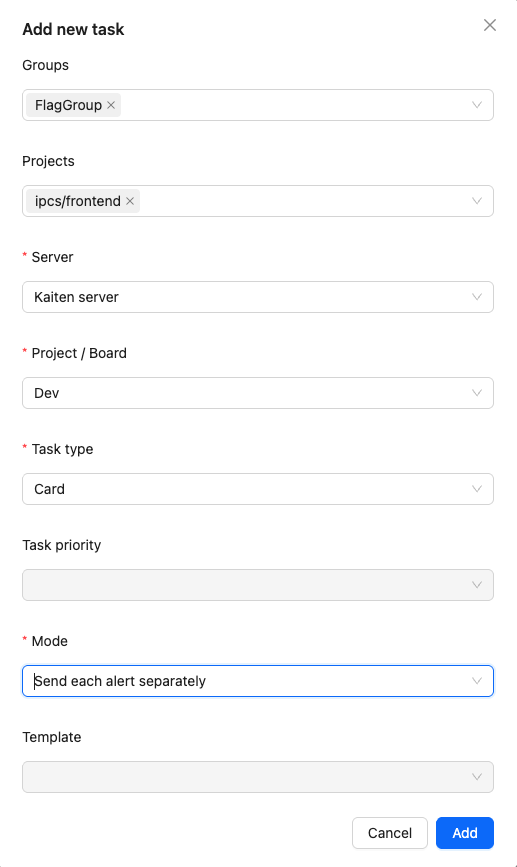
- Mode — task sending mode:
- Send all the alerts together;
- Send each alert separately.
- Groups — groups of projects to which notification is made. If not specified, all groups are implied;
- Projects — the specific projects for which the notification is made. If not specified, all projects are implied.
- Server — task manager (in this case Kaiten);
- Project/Board — Kaiten-boards;
- Task type — card type;
Creating tasks in Jira
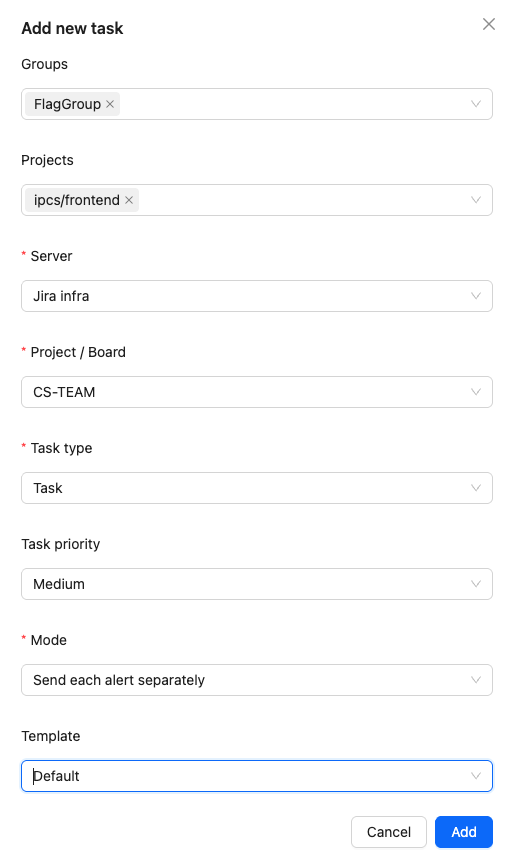
- Mode — task sending mode:
- Send all the alerts together;
- Send each alert separately.
- Groups — groups of projects to which notification is made. If not specified, all groups are implied;
- Projects — the specific projects for which the notification is made. If not specified, all projects are implied.
- Server — task manager (in this case Jira);
- Project/Board — Jira-project;
- Task type — card type: Task, Story or Bug;
- Task priority - card priority. If not specified the default Jira task priority would be used;
- Template - template name. If not specified the default template would be used.
If both groups and projects are specified, alerts will include information for all projects in the specified groups and for all specified projects.
Template management
CodeScoring supports the ability to use custom templates for email notifications or creating Jira issues.
Template management is available in the section Settings -> Notifications -> Templates.
To create a new template, use a form with the following fields:
- Name;
- Type - templates are divided into types depending on their use: Markdown for Jira issues and HTML for email notifications;
- Template data - template content in jinja2 format.
Use only secure structures. ::: Before finalizing the template, make sure your data is secure.
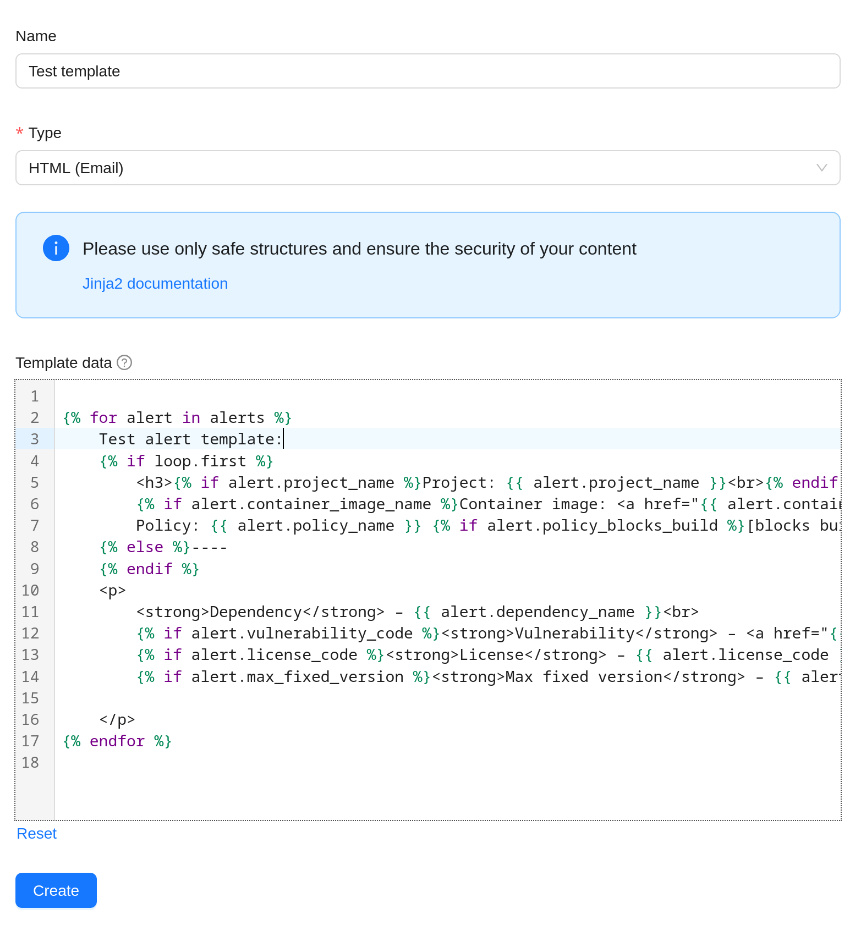
When filling in the Template data field of the form, please note that the template can be used both for the "Send each notification separately" and for "Send all notifications together" sending modes.
The content of email message or jira task is generated based on the template and alert context.
The context provides a collection of alerts (when using "separate" send mode, the collection contains only one alert).
For each alert you can use the following variables:
- policy_alert_level: str - alert criticality level;
- policy_alert_stage: str - development cycle stages;
- policy_alert_matched_criteria_list: list[str] - list of The policy triggers;
- policy_name: str - policy name;
- policy_blocks_build: bool - blocking CI build or download of a component from a proxy repository;
- policy_block_delay: int - delay (days) from the first policy trigger to blocking;
- policy_is_block_delayed: bool - block delay is used;
- dependency_name: str - name of the dependency;
- dependency_link: str - link to dependency;
- dependency_technology: str - programming language or ecosystem;
- vulnerability_code: Optional[str] - vulnerability identifier from external database;
- vulnerability_link: Optional[str] - link to the vulnerability;
- max_fixed_version: Optional[str] - max fixed version;
- license_code: Optional[str] - license;
- project_name: Optional[str] - project name;
- container_image_name: Optional[str] - name of container image;
- container_image_link: Optional[str] - link to container image.
:::note Note All links are leading to the platform on which the data for the email or task in Jira was generated.