
Comparing scans and SBOM
On the Scans compare page you can compare two successful SCA scans of the same project: view summary metrics for both scans and see differences in the SBOM composition in CycloneDX format.
You can compare scans of any versions of the same parent project — for example, different branches, tags, or repeated runs of the same version.
How to open comparison
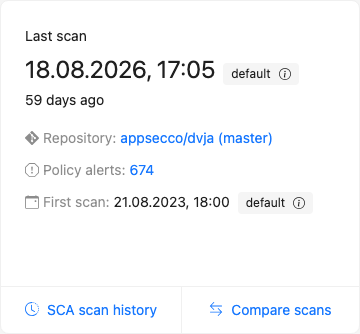
Open the comparison with the Compare scans button:
- on the SCA tab of the project page — in the last scan metrics block;
- on the SCA scan history page — in the list header.
Selecting scans
- Select Version 1 and Scan 1.
- Select Version 2 and Scan 2.
- Click Compare.
The scan lists show only successful SCA analyses of the selected version (ordered by start date, newest first).

You cannot compare a scan with itself. Failed, cancelled, and unfinished analyses are not available for selection. Scans from another project cannot be compared.
Overview
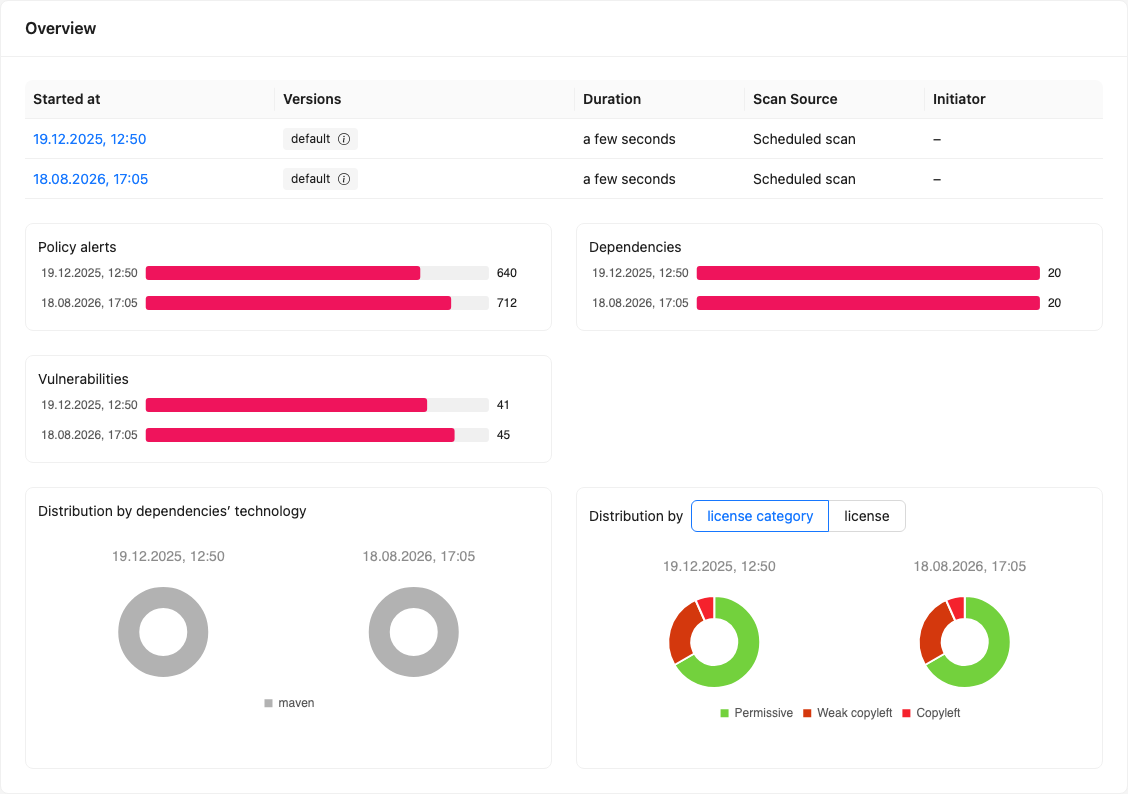
After comparison, the Overview block shows:
- a table with parameters of both scans (started at, version, duration, scan source, initiator, status);
- bar charts for the number of policy alerts, dependencies, and vulnerabilities;
- donut charts for distribution by dependency technologies and by licenses / license categories.
Metrics are shown for each scan separately — this helps assess how the project profile changed between two points in history.
SBOM diff
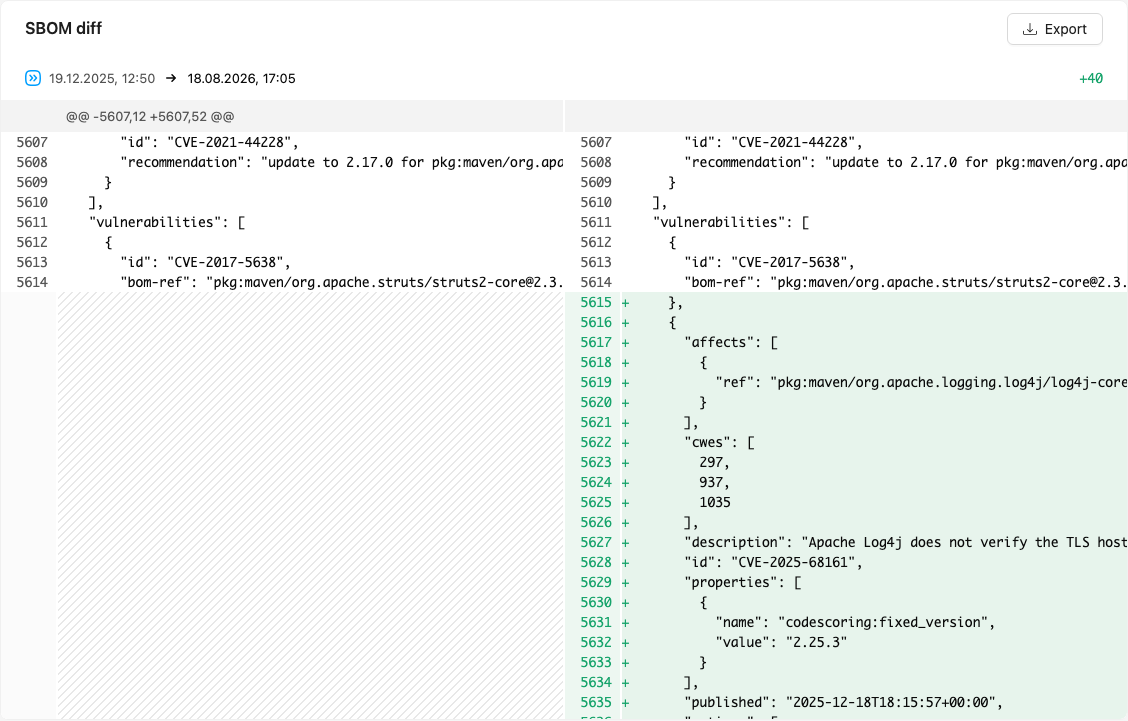
Below the overview, the SBOM diff block shows a unified diff of the normalized SBOM in CycloneDX v1.6 JSON format.
Before comparison, unstable fields (serialNumber, metadata.timestamp) are removed from the SBOM, and lists of components and related objects are sorted. This reduces noise from regeneration and makes changes in composition, versions, licenses, and vulnerabilities visible.
Use the Export button to download the diff file (sbom_diff_<scan 1 datetime>_vs_<scan 2 datetime>.diff).
If the normalized SBOMs are identical, the diff block will be empty.
Limitations
- Only successful SCA scans of versions of the same project can be compared.
- The diff is built from an SBOM regenerated from analysis results, not from the originally uploaded file.
- The UI uses CycloneDX v1.6 JSON for the diff.
- Comparing arbitrary SBOMs without project scans is not available in the platform — import an SBOM into a CLI project and compare the resulting scans, or use BOM comparison in the IDE.