
Organizing SCA projects
Viewing the list of projects
The list of projects is located in the SCA -> Projects section. The section contains all SCA projects available to the user.
The following information can be obtained for each project:
- Project - the project name;
- Dependencies - the number of dependencies found on the default version of the project;
- Vulnerabilities - the number of vulnerabilities found on the default version of the project;
- Proprietor - which proprietors this project is included in;
- Groups - which groups this project is included in;
- Technologies - the list of technologies associated with the project;
- Versions - the number of project versions associated with the project;
- First scan - the date of the first successful scan and the version on which this scan was performed;
- Last scan - the date of the last successful scan and the version on which this scan was performed;
- Scheduled scan - reflects the corresponding project scan setting;
- Scan with hashes - reflects the corresponding project scan setting.
Project page
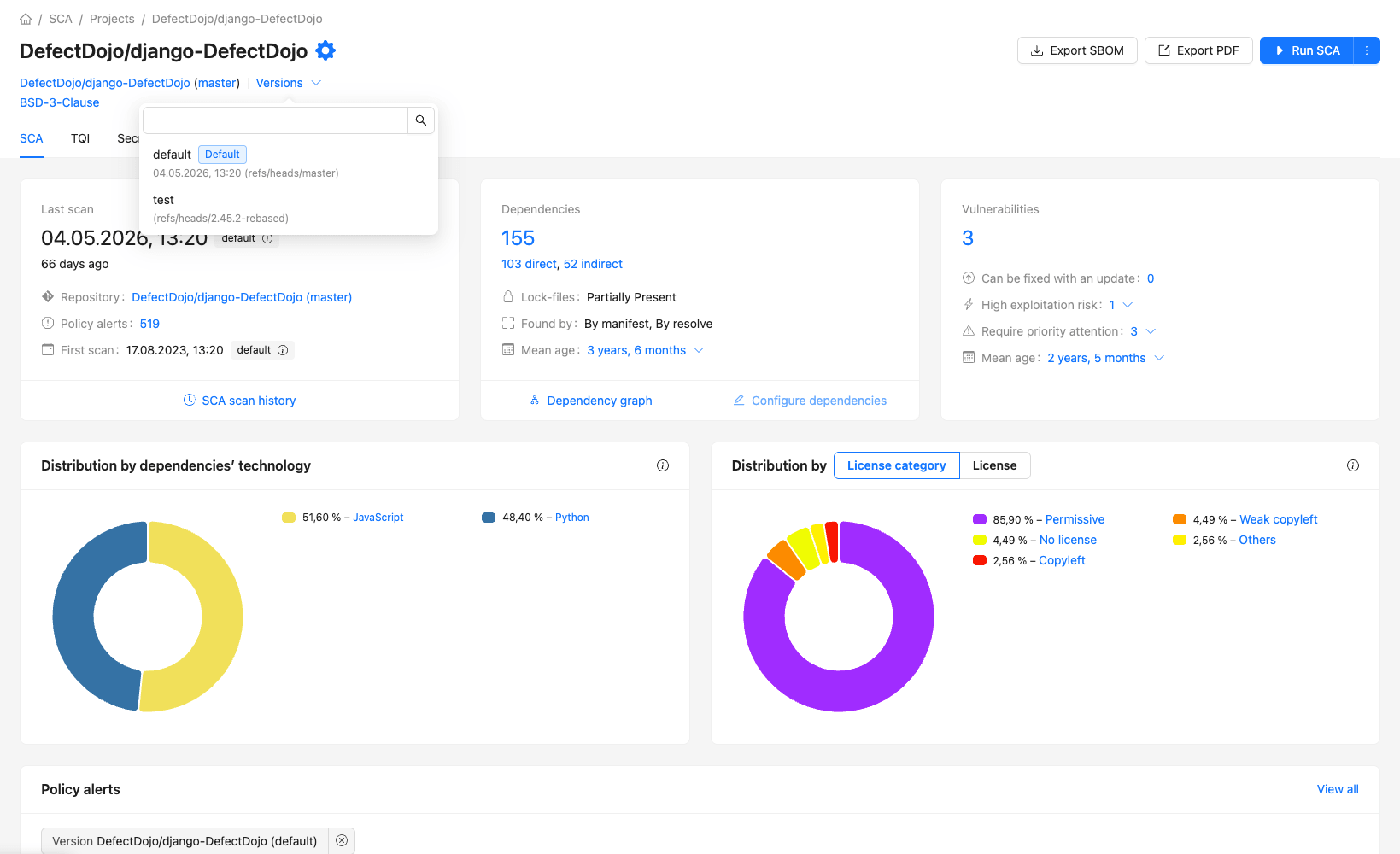
Header
- Name - the project name and a button to go to the settings;
- Categories - the list of categories the project belongs to;
- Repository data - if the project has a VCS link, a link to the repository and a specific branch is displayed;
- Version switching - a dropdown list that allows you to navigate to a specific version page;
- License - information from the project settings;
- Description - information from the project settings.
The following actions are available for the project:
- Export SBOM - exports the list of used components (SBOM) obtained after composition analysis;
- Export PDF report - generating a PDF report for the project;
- Run analysis - the button for manual analysis launch with the ability to select a project version.
To perform actions, the user must have the appropriate permissions. A description of permissions is provided in section Managing user accounts.
To download SBOM, each project must have successfully completed composition analysis.
Project statistics
General information about the project, consolidated into five blocks:
- Scan - the first and last scan, the scan object, as well as the number of alerts and a button to navigate to the scan history;
- Dependencies - the number of dependencies of the default version, including direct and transitive ones, as well as their average age and how they were found;
- Vulnerabilities - the number of vulnerabilities of the default version, as well as their average age;
- Distribution by technologies - the technologies used in the project dependencies;
- Distribution by licenses and their categories - the most frequent licenses of the dependencies.
Alerts
The list of alerts of the default version with the ability to navigate to the general list of alerts filtered by the project.
Vulnerabilities
The list of vulnerabilities of the default version with the ability to navigate to the general list of vulnerabilities filtered by the project.
Dependencies
The list of dependencies of the default version with the ability to navigate to the general list of dependencies filtered by the project.
Project version
You can navigate to a project version from the dropdown list on the project page. The project version page almost completely repeats the project page, except that the information concerns only the selected version.
Version management is performed in the corresponding section.