
Repository and Artifact Management
Context
CodeScoring.Save stores and serves artifacts for a development team: a builder publishes a package, and IDEs, CI agents, and engineers download it from the same URL — without leaving the company perimeter.
All artifacts live inside repositories, and repositories are grouped into projects. The same hierarchy is reflected in the web interface:
A project is a container for the team's repositories. A repository is a concrete storage of one format (Maven, npm, Docker, etc.) and one of two types. An artifact is what lives inside a repository and what clients pull.
Two Repository Types
CodeScoring.Save supports only two repository types, and each addresses a different need.
Proxy repository — a caching proxy in front of an external source (for example, Maven Central or npmjs.com). When a client requests an artifact for the first time, Save fetches it from upstream, caches it, and serves it. All subsequent requests are served from the cache — this speeds up builds and reduces dependency on external services. Proxy repositories also benefit from OSA Proxy security policies (when configured), which can block downloads of unsafe components.
Hosted repository — internal storage where the team publishes its own artifacts. This is where internal libraries, vetted third-party components, and build artifacts go.
A single project may contain any number of repositories of either type.
URL Access Scheme
An external client (Maven, npm, Docker, etc.) reaches a repository through URLs of the form:
For OCI / Docker, the standard /v2/ prefix is used as required by the OCI Distribution Spec. Nexus-compatible flat URL routing is also supported — see Working with OCI / Docker.
Web Interface Layout
The left-hand vertical navigation has the following sections:
- Projects — the main section: a list of projects, with a list of repositories inside each project, and a tree of artifacts inside each repository;
- Cleanup — automatic cleanup policies for unwanted artifacts;
- Settings — accounts, roles, service accounts, configuration, the activation key, and the audit log.
At the top of the interface is a global search — opened with the / key, it searches across projects, repositories, and artifacts simultaneously, with real-time suggestions.
Basic Scenario: Connect Your First Repository
Step 1. Create a Project
A project is a container for the repositories that will live inside it. It is convenient to split projects by team, product, or environment.
- In the sidebar, choose Projects.
- Click Create project in the top-right corner.
- Fill in the form:
- Name — a human-readable project name (for example,
Backend Team); - Color — a color that helps tell projects apart in lists;
- Key — a URL-safe project identifier (for example,
backend-team). If left empty, it is auto-generated from Name, even when Name does not use Latin characters. Key cannot be changed after creation; - Description — an optional project description;
- Cleanup policy — a two-pane selector listing the existing cleanup policies. It can be left empty and assigned later.
- Name — a human-readable project name (for example,
- Click Create project.
After creation, the project page opens with an (empty) list of repositories and the project's metadata in the header.
Name is shown in the UI and can be changed at any time. Key participates in every URL and API path, so changing it would require reconfiguring every client.
Step 2. Create a Repository in the Project
A repository — concrete storage for artifacts of a single format — is created inside a project.
-
Open the project you just created.
-
Click Create repository in the top-right corner of the project page.
-
Fill in the common fields:
- Name — a human-readable name (for example,
Maven Central (proxy)). If the name mentions a format and a type (for example,npm proxy), the link under the field fills in Format, Type, and Proxy URL (the public upstream) for you; - Color — a color for visual distinction;
- Key — a URL-safe identifier (for example,
maven-central). It cannot be changed after creation; - Description — an optional description, up to 100 characters.
- Name — a human-readable name (for example,
-
Choose Format: OCI (Docker / Helm), Maven / Gradle, NPM, NuGet, PyPI, Raw / Generic, Go Modules, Debian / APT, RPM, PHP / Composer, or Alpine / APK. The format and the type cannot be changed after creation.
-
Choose Type:
- Proxy — to proxy an external registry;
- Hosted — to host your own artifacts.
-
If Proxy is selected, additional fields appear:
- Proxy URL — the upstream repository URL (for example,
https://repo1.maven.org/maven2/); - Cache TTL, seconds — the metadata cache lifetime in seconds. For typical external registries,
86400(one day) is enough.
Depending on the format, the form also shows format-specific fields — for example, Authentication for the upstream or RPM metadata folder depth.
- Proxy URL — the upstream repository URL (for example,
-
Optionally attach Cleanup policy — a list of cleanup policies that should run against this repository.
-
Click Create repository.
After creation, the repository page opens. The header shows the status (Enabled/Disabled), the format, the type, the creation and update timestamps, and — for a proxy repository — a clickable Remote URL link to the upstream.
The status (Enabled/Disabled) is set on the edit form: open the repository, click the pencil button (Edit repository) in the header, flip the top Status radio toggle, and click Save. A disabled repository does not accept or serve requests, but it is not deleted and keeps its artifacts.
Step 3. Get Ready-Made Snippets for Connecting Clients
In the right part of the repository header there is a chain-link icon button. Clicking it opens the Useful snippets popover — a set of ready-made configuration fragments and commands tailored to the repository format.
- Click the chain-link button in the repository header.
- In the card that appears, scroll through the snippets:
- each snippet has a title (for example,
settings.xml,.npmrc,pip.conf,docker login), a syntax-highlighted code block, and a short description; - the set of snippets is composed server-side based on the repository's format and type. For Maven, you typically see a
<mirror>fragment forsettings.xmland a<repository>fragment forpom.xml; for Docker —docker loginanddocker pull; for npm — a line for.npmrc; and so on.
- each snippet has a title (for example,
- Click the copy button to the right of the snippet you need — it goes straight to the clipboard.
- Paste the snippet into the client's configuration file, or run the command in a terminal.
Step 4. Publish and Download the First Artifact
From this point on, everything happens on the client side — Save accepts the standard requests from each package manager. For a hosted repository, the usual path is publishing via mvn deploy, npm publish, twine upload, or docker push. For a proxy repository, an ordinary pull is enough — Save will cache the artifact on the way through. The web interface has no upload button: artifacts get into a repository only through clients and HTTP requests.
The first request may require authentication — see Connecting Clients and Authentication.
Once a client uploads or downloads something for the first time, the artifact appears in the tree on the repository page.
Working with Artifacts in a Repository
The repository page has two columns: the artifact tree with search and sort on the left, the details of the selected artifact on the right.
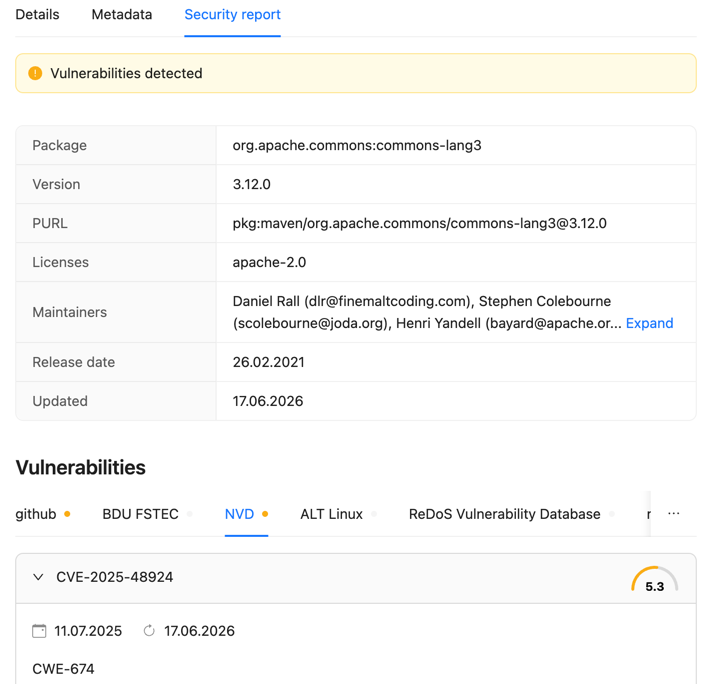
The Security report tab in the artifact details shows data from the CodeScoring database: package information (PURL, licenses, maintainers, release date) and the vulnerabilities found in the package, grouped by source (NVD, BDU FSTEC, GitHub, and others). The tab is available for artifacts in proxy repositories, except Docker and raw. The cache duration for this data retrieved from the Index service is configured by SECURITY_INFO_CACHE_TTL_HOURS.
Browsing the Tree
The tree shows the structure of the repository — folders and files with icons. Files with a "lock" icon are protected (locked/release) artifacts that cannot be deleted or overwritten without extra steps. Folders are expanded lazily: children are fetched on click.
Clicking a file opens its details in the right pane: name, size, path, checksum, and format-specific metadata (Maven groupId/artifactId/version, Docker tags, and so on).
Search, Sort, and Filters
Above the tree is the Search artifacts field: start typing a substring — the tree is replaced with a flat list of matching artifacts (name and path). Clicking a row opens the details of the matching artifact.
Two buttons sit next to the search field.
The Sort button controls how the tree is ordered:
- Sort by —
Name,Date added, orDate modified; - Sort direction —
A to ZorZ to A.
The filter button (funnel icon), available for proxy repositories, exposes a Show uncached artifacts toggle. By default the tree shows only what is already in the local cache. With the toggle enabled, Save also lists artifacts known to upstream but not yet cached — useful for browsing what's available in the proxied source without triggering a real pull. This is not available for every repository format, because the underlying protocols differ.
Actions on a Single Artifact
After selecting an artifact, the header of the right pane offers the Download button and, in the three-dot menu next to it, Lock artifact and Delete artifact:
- Download — saves the file through the browser's regular download. Only files can be downloaded, not folders; for an artifact that is not cached yet, the button is disabled;
- Lock artifact — marks the artifact as
release. Once locked, the artifact cannot be deleted or overwritten by a normalupload— this protects released versions from being silently replaced; - Delete artifact — removes the file from the repository (for hosted) or from the cache (for proxy). Unavailable for a locked artifact.
The release flag can only be cleared through the API: PUT /api/v1/artifacts/release?id=<artifact-id> with {"is_release": false}.
Bulk Actions
Each tree row has a checkbox on its left. Once at least one checkbox is ticked, a panel appears above the tree with the number of selected items, Select All, and the actions:
- Lock — locks the selected artifacts in bulk;
- Delete — deletes them in bulk.
Both actions ask for confirmation; afterwards, a notification shows how many items were processed.
Connecting Clients and Authentication
Save supports several authentication methods to cover both interactive clients and CI pipelines. The client chooses the method itself through the Authorization header (or a format-specific header).
A Bearer token with three dot-separated segments is classified as a JWT; any other Bearer token is treated as an opaque npm token. The sa$ prefix in Basic Auth marks a service account (robot).
Getting an Admin JWT
The administrative examples below use the Authorization: Bearer $ADMIN_JWT header. cs-auth issues an access token in exchange for the administrator's username and password, and that token lives for 15 minutes by default.
Step 1. Find the administrator password
The admin account is created automatically on first startup. Where its password comes from depends on how the service was deployed:
The generated password is printed as a separate block that is easy to find in the logs:
The block is printed only during the startup that created the account. If the logs from that first start have already rotated and AUTH_ADMIN_PASSWORD_FILE was never set, the password cannot be recovered.
Step 2. Obtain an access token
The response:
For convenience, store the token in an environment variable - every example below uses exactly this one:
Step 3. Change the password if required
If the response contains must_change_password: true, you have a token but almost everything is closed off: any /api/v1/admin/* endpoint returns 403 with the body {"code": "password_change_required"}. Until the password is changed, only GET /api/v1/auth/me, PUT /api/v1/auth/me/password, and the login / refresh / logout endpoints themselves are available.
The new password must be at least 8 characters long. The must_change_password flag is baked into the already-issued token, so you have to log in again after changing the password (step 2) — the old token stays restricted until it expires.
Step 4. Verify the permissions
The response should contain "is_admin": true — an administrator passes every permission check.
Refreshing the token
The access token lives for 900 seconds (configurable through AUTH_JWT_EXPIRY), and the opaque refresh token for 7 days (AUTH_REFRESH_TOKEN_TTL). Once the access token expires, obtain a new pair without re-entering the password:
Refresh tokens are rotated: the presented token is revoked and a new one comes back in the response — store it on every iteration. No Authorization header is needed for this request.
The administrator's password and its short-lived token are not meant for pipelines. For automation, create robot accounts with a narrow permission set — their keys are not tied to an employee and appear in the audit log under their own identity.
Robot Accounts for CI/CD
Personal passwords are not recommended for CI/CD integrations — they're tied to an employee and rotate often. The right tool is a robot account: a service account with its own role and a long-lived API key.
Creating Through the Web Interface
- In the sidebar, open
Settings -> Robot accounts. - Click Create robot account in the top-right corner.
- Fill in the fields:
- Login — the service name used for authentication (for example,
ci-builder). Save automatically adds the service-account prefix to the value you enter; - Name — a human-readable name (for example,
CI Builder Bot); - Description — an optional description;
- Expires in — the date when the key expires. Quick presets
Week,Month, andYearare available in the date picker. To make the key permanent, tick the Never checkbox to the right of the date picker — the date input is then disabled automatically; - Global permissions — the robot's global permissions;
- Scoped permissions — permissions limited to one, several, or all projects or repositories. The Scope switch selects the level (Projects / Repositories), and each scope adds entries through
Add project permissions/Add repository permissions.
- Login — the service name used for authentication (for example,
- Click Create robot account.
When the robot is created successfully, a modal window with the API key opens automatically — this is the password used for Basic Auth.
The API Key Window
After clicking Create robot account, Save opens the API key created window. The modal shows:
- API key — a read-only field with the key itself and a copy button that puts it on the clipboard.
- Warning — server-supplied text, for example
Store this API key securely — it cannot be retrieved again.
Below the secret is an I have copied the key button that closes the window and takes you to the newly created robot account's edit page.
After the window closes, the same key cannot be viewed or retrieved again — Save stores only its hash. Copy the key and save it into your CI secret storage (GitLab CI variables, GitHub Actions secrets, HashiCorp Vault) before closing the window. If the key is lost, rotate it via POST /api/v1/admin/robots/<id>/api-keys/rotate (the web interface has no key rotation yet) — once rotated, the old value becomes invalid.
Creating Through the API
This call requires an administrator token in the ADMIN_JWT variable (see Getting an Admin JWT).
The response returns api_key, which is exposed only once at creation time — save it in your CI secret storage.
Client Usage
username = sa$<robot-name>, password = <api-key> — standard Basic Auth:
$ in shell
In bash, $ inside single quotes is preserved as-is; inside double quotes it must be escaped as \$. No escaping is needed in YAML / TOML / XML configuration files.
The X-NuGet-ApiKey header is supported directly: cs-auth classifies it as nuget_key and validates it by the 12-character key prefix. Both options work for NuGet, but we recommend Basic Auth with a robot account — it is consistent with the other formats, and the robot's identity is recorded explicitly in the audit log.
Anonymous Read Access
When the global AllowAnonymousRead flag is enabled, unauthenticated requests receive a PermissionSet granting projects.view, project_repos.view, project_artifacts.view, and project_artifacts.download across all projects. For Docker / OCI this mode still requires the 401 → /v2/token → 200 cycle — otherwise the Docker client cannot work (see Working with OCI / Docker).
The current value of the flag is visible under Settings -> Configuration. Changing it is done through the API.
Every call below requires an administrator token (see Getting an Admin JWT).
Upstream Access for Proxy Repositories
Upstream Credentials
If an external repository requires authentication (a private Nexus, Artifactory, GitLab, Private Packagist, etc.), pass the credentials in the auth block when creating or updating the proxy repository:
The password and the token are write-only: the API never returns them and reports the has_password and has_token flags instead. To change the credentials, send a new auth block in PUT /api/v1/repos/<repository_id>. If the credentials do not fit the format (for example, apikey for a format other than NuGet), Save logs the warning Configured upstream credential could not be applied; requests proceed anonymously and accesses upstream without authentication.
Where Save Sends Credentials
Save makes sure upstream credentials do not reach third parties:
- Only to the upstream host. The credentials are sent only to the host from
remote_urland its subdomains. If upstream redirects a download to another host (CDN, S3), Save removesAuthorizationandX-NuGet-ApiKeyfrom the request and downloads the file anonymously. For Composer, archives from GitHub are also downloaded without the upstream credentials. - No https to http downgrade. If upstream is served over https and redirects to http while the request still carries credentials, Save does not follow the redirect. The request fails, and the log shows
refusing to follow redirect from https to ... with upstream credentials attached. There are no retries: this is an upstream configuration error. - Docker: token service over https only. If a registry is served over https but its token service (the realm from the
WWW-Authenticateheader) uses http, Save does not send the password there. The log showsrefusing to send upstream credentials to non-https token realm. - Upstream over http. A proxy repository with an
http://remote_urland credentials works, but the password is sent in clear text. Save logs the warningupstream credentials are configured over plain http and are sent unencryptedonce per host. Use https whenever possible.
For Docker registries that issue Bearer tokens (Docker Hub, Harbor, and so on), listing upstream images works correctly as well.
Certificates and Corporate Proxy
- Certificates. Save verifies the upstream certificate against the system root certificate store of the container. If upstream is signed by a corporate certificate authority, mount its certificate into the container (for example, into the
/extra-cadirectory) and setSSL_CERT_DIR=/etc/ssl/certs:/extra-ca— this keeps the system certificates trusted as well. Do not useSSL_CERT_FILEfor this: it replaces the whole system store. Save does not retry certificate errors (unknown authority, expired certificate, wrong host name): the client gets an error immediately, and the cause is visible in the backend log. - Corporate proxy. All proxy repositories, including NuGet, honor the
HTTPS_PROXY,HTTP_PROXY, andNO_PROXYvariables. Add the internal addresses that Save must reach directly toNO_PROXY: the cs-auth service, S3/MinIO, internal upstreams.
Cleanup Policies
To keep storage from growing without bound, repositories can have cleanup policies attached — rules for automatic deletion (or retention) of artifacts. Save supports five policy types; simple ones are enough for most cases, while complex AND/OR conditions use the expression type.
Creating a Policy
- In the sidebar, open Cleanup.
- Click Create policy.
- Fill in the common fields: Display name, Description, and optionally Schedule (a five-field cron expression: minutes, hours, day, month, weekday).
- Choose Policy type — this defines the main cleanup rule:
- Specify the Formats the policy applies to. Leaving this empty means it applies to every format.
- For the
expressiontype, build the criteria tree as well — each criterion combines atype, a comparison operator (eq,ne,gt,lt,matches,contains), and a value; criteria can be grouped with logical operatorsANDorOR. - Click Create policy.
Available Criterion Types for expression
Full list: GET /api/v1/enums/cleanup-criterion-types.
Assigning a Policy to a Repository
The assignment happens on the create or edit form of a repository (or of a project — in which case the policy cascades to every repository inside the project).
- Open the repository and click the pencil button (Edit repository) in the header.
- Scroll down to the Cleanup policy section.
- The left column (Available) lists every existing policy; the right column (Applied) lists the ones already attached. Tick the policies you need and move them to Applied with the arrow; to detach a policy, remove it from the Applied list.
- Save the changes.
Manual Run and Preview via API
Access Management
Users, roles, and access rights for projects and repositories are managed by a separate service, cs-auth. Its API is proxied through Save under /api/v1/auth/* and /api/v1/admin/*. The authentication methods are described above in Connecting Clients and Authentication.
In the web interface, the relevant sections live under Settings:
- Roles — role definitions with their permission sets;
- Users — human accounts;
- Robot accounts — service accounts (see above).
The exact endpoints for managing users, roles, and project membership are part of the cs-auth API surface. Save forwards them transparently. They are described in Swagger UI in a separate document, CodeScoring.Auth API (see API Documentation (Swagger)).
Access Levels
Permissions in CodeScoring.Save are granular and follow the <resource>.<action> format. Roles in cs-auth are user-defined and consist of such permissions.
Repository level (artifacts inside a repository):
Repository level (the repository itself):
Project level (cascade permissions that apply to every repository and artifact in the project):
Global (only available through a global-scope role):
Project-scope permissions automatically cascade to the repository scope: a user with project_artifacts.download on a project gets artifacts.download on every repository inside that project. The * key grants wildcard access to all projects / repositories.
Assigning a User or Robot Account to a Project
Membership ties a user or a robot account to a project with a specific role. The assigned member receives every permission of the role and shows up as a member in the project header.
Through the Web Interface
The Members section on the project page is still being built. The backend supports every necessary operation (/api/v1/admin/projects/<project>/members), but the Members tab is not yet exposed in the project UI.
Until the tab is available, use the API operations below.
Through the API
Every call below requires an administrator token in the ADMIN_JWT variable (see Getting an Admin JWT).
Adding a member:
For human users role_id is required; for robot accounts (is_service=true) it can be omitted.
Listing members:
Changing the role of an existing member:
Removing a member from the project:
The Same Actions via API
Every action covered above for the web interface is also available through the REST API. This is useful for bootstrap scripts, infrastructure-as-code (Terraform / Ansible), and integration tests.
API Documentation (Swagger)
The complete API description opens in Swagger UI:
Two documents are switched in the top-right corner: CodeScoring.Save API (repositories, artifacts, cleanup policies, activation key) and CodeScoring.Auth API (users, roles, robot accounts, audit). The specifications themselves are available at /api/swagger/doc.json and /api/v1/admin/swagger/doc.json — they are convenient for generating clients. In the web interface, Swagger UI opens with the CS Save API button at the bottom of the sidebar. To call a method directly from Swagger UI, click Authorize and paste Bearer <token> (see Getting an Admin JWT).
Creating a Project
Creating a Proxy Repository
Creating a Hosted Repository
Assigning a Cleanup Policy
Creating a Cleanup Policy
Creating an Expression-Based Policy
Monitoring
Audit Log
The audit log records every change to projects, repositories, artifacts, roles, and robot accounts. In the UI it is available:
- Globally — under
Settings -> Audit log; - Per project — through the journal icon on the right of the project header, which opens the audit log filtered to that project.
Each entry contains the event time, the initiator, the resource type and identifier, the action type, and a set of fields with details (the name of the uploaded artifact, changed repository settings, and so on). Entries are grouped by day and displayed as a timeline, and the links inside an entry are clickable (they open the corresponding project, repository, policy, user, or role).
The log can be exported for a specific period through the Export button in the header (formats: JSON or HTML).
Repository Statistics
Current aggregated repository metrics are available via the API:
Response:
The endpoint returns aggregated values only. The cache_hit_ratio field is present only for proxy repositories.
Service Status
A global service health check. There are no per-repository health endpoints: upstream availability is checked by background workers and exposed through Prometheus metrics.
Logs
Logs are centralized and emitted as JSON. Filtering by a specific repository is done through standard log-aggregator tools.